Application Review
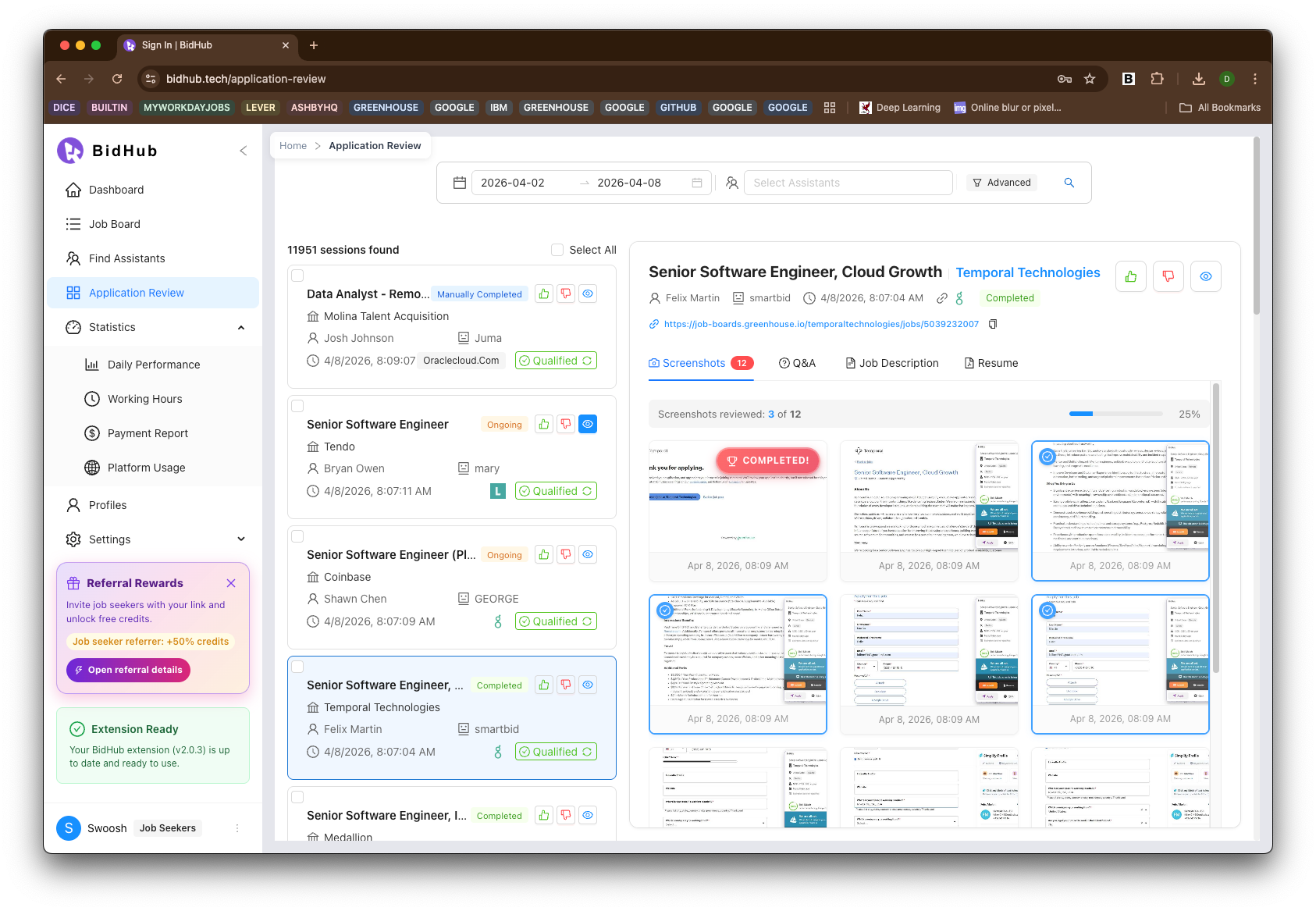
The Application Review page helps users track and review job applications connected to a profile.
It gives both Job Seekers and Assistants a central place to see application progress, review job details, check qualification results, and learn from past applications.
What you can do here
On the Application Review page, you can:
- View job applications linked to your profile
- Check the current application status
- Review qualification results
- View job descriptions
- Review Q&A results related to a job
- Open screenshots from the application process
- Give feedback on completed application work
- Update Apply Criteria when needed
Why this page matters
Application Review helps users understand:
- What happened during the application process
- Why a job was marked Qualified or Disqualified
- How an Assistant handled the application
- What can be improved for future applications
Main parts of the page
Application list
The left side of the page shows a list of application sessions.
Each item may include:
- Job title
- Company name
- Profile or user
- Assistant name, if applicable
- Application date and time
- Source website
- Qualification label
- Progress label such as Ongoing or Manually Completed
Application details panel
When you select an application, the right side shows more detail.
Depending on the session, this area can include:
- Job title and company
- Owner or Assistant information
- Application time
- Qualification result
- Disqualification reasons
- Job link
- Screenshots
- Q&A
- Job description
- Resume used in the session
Qualification review
The page shows whether a job is marked Qualified or Disqualified based on the profile's Apply Criteria.
Qualified
If a job is marked Qualified, the application matches the current profile criteria.
Disqualified
If a job is marked Disqualified, the page shows the reason.
Examples include:
- Salary does not match the profile criteria
- Location does not match the profile criteria
- Another Apply Criteria rule is not satisfied
Updating Apply Criteria
When a qualification result is based on profile criteria, users can update those rules through Profiles.
Screenshots
The Screenshots tab shows screenshots captured during the application session.
If the application is completed using BidHub Copilot, screenshots from the application process are automatically recorded.
Screenshots help users:
- Review the steps taken during an application
- Confirm what was entered
- Understand how an Assistant handled the process
- Spot mistakes or missed details
- Improve future application quality
Q&A
The Q&A tab shows question-and-answer results related to the job or application session.
This helps users review:
- What was asked
- How responses were generated or selected
- Whether the answers matched the job context
- What should be improved in future applications
Job Description
The Job Description tab allows users to review the job details connected to that application.
This helps users understand:
- Why the role was a good or poor fit
- Whether the application matched the role correctly
- Whether profile changes are needed
Resume
The Resume tab shows the resume associated with that application session.
This helps users confirm which document was used and whether it matched the role appropriately.
For Job Seekers
Job Seekers can use Application Review to:
- Check application status
- Review qualification results
- Monitor work completed by Assistants
- Check screenshots and Q&A
- Give feedback
- Improve future applications
For Assistants
Assistants can use Application Review to:
- Review completed applications
- See session outcomes
- Review screenshots of their workflow
- Understand feedback
- Improve quality over time
Typical workflow
- Open Application Review
- Select an application session
- Check the current status
- Review whether the job was Qualified or Disqualified
- Open screenshots, Q&A, job description, or resume tabs
- Review what happened
- Give feedback or update profile criteria if needed