Email Forwarding
Email Forwarding lets BidHub receive specific verification emails so supported application steps can continue with less manual copy and paste.
This setup is meant for selected job-application emails, not your whole inbox.
What Email Forwarding Does
BidHub can use forwarded verification codes and sign-up links from supported senders during supported apply flows.
The sender patterns currently shown in BidHub are:
no-reply@us.greenhouse-mail.io@otp.workday.com
When forwarding is active, BidHub can help with supported steps such as entering a verification code or opening a verification link during a Greenhouse or Workday flow.
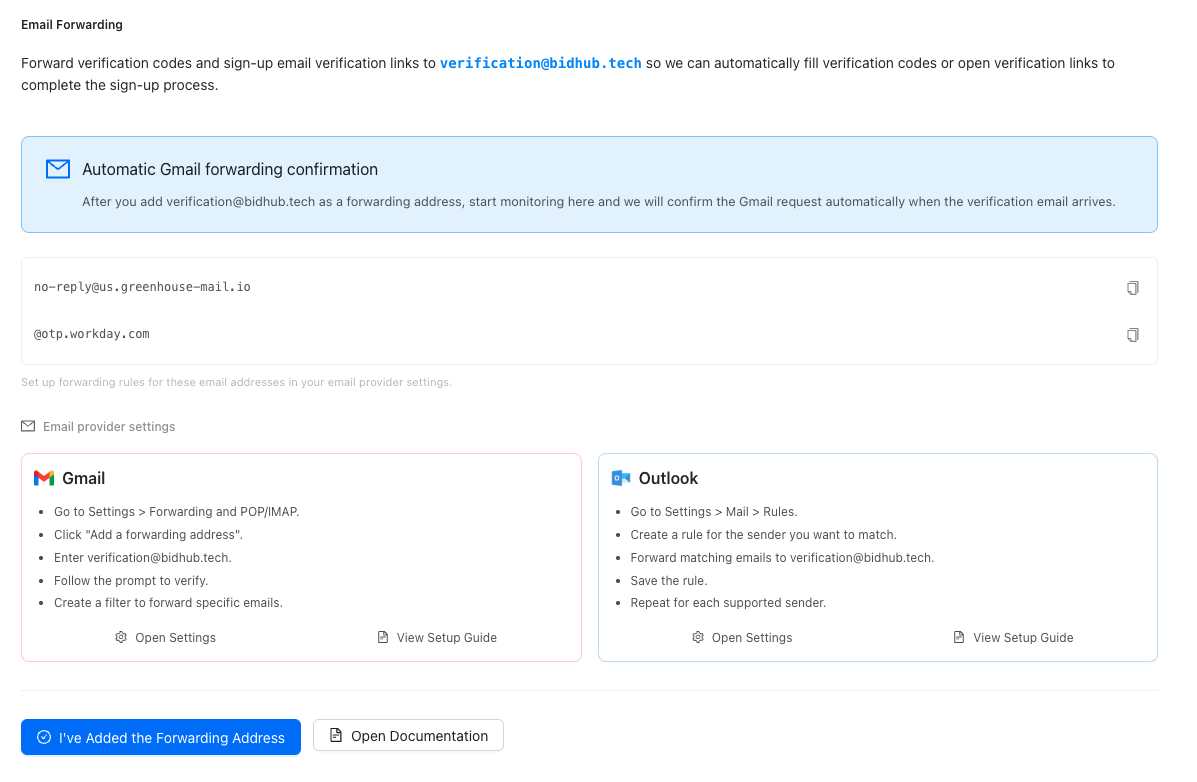
BidHub's Email Forwarding panel lists the exact sender patterns to forward and the destination address to use.
Before You Start
- Save your BidHub profile first. BidHub needs a saved profile before it can monitor forwarding status.
- Make sure the email address on your profile matches the inbox where these messages arrive.
- Use
verification@bidhub.techas the forwarding destination. - Forward only supported job-application messages instead of all incoming mail.
- Gmail automatic confirmation is supported by BidHub. Outlook web setup is still created manually in Outlook.
For BidHub, the safest setup is to forward only the supported verification emails instead of forwarding all new mail.
Gmail Setup
1. Add BidHub as a forwarding address
- Open Gmail on a computer.
- Sign in to the account where you want to forward messages from.
- In the top right, click Settings and then See all settings.
- Click Forwarding and POP/IMAP or Forwarding.
- In the Forwarding section, click Add a forwarding address.
- Enter
verification@bidhub.tech. - Click Next, then Proceed, then OK.
- Gmail sends a verification message to
verification@bidhub.tech. - BidHub automatically confirms the Gmail verification link for you.
- Return to the Gmail Settings page after a short wait.
- Refresh your browser.
- Click Forwarding and POP/IMAP or Forwarding again.
- In the Forwarding section, select Forward a copy of incoming mail to.
- Choose what you want to happen with the Gmail copy of your emails.
- It is recommended to select Keep Gmail's copy in the Inbox.
- At the bottom of the page, click Save Changes.
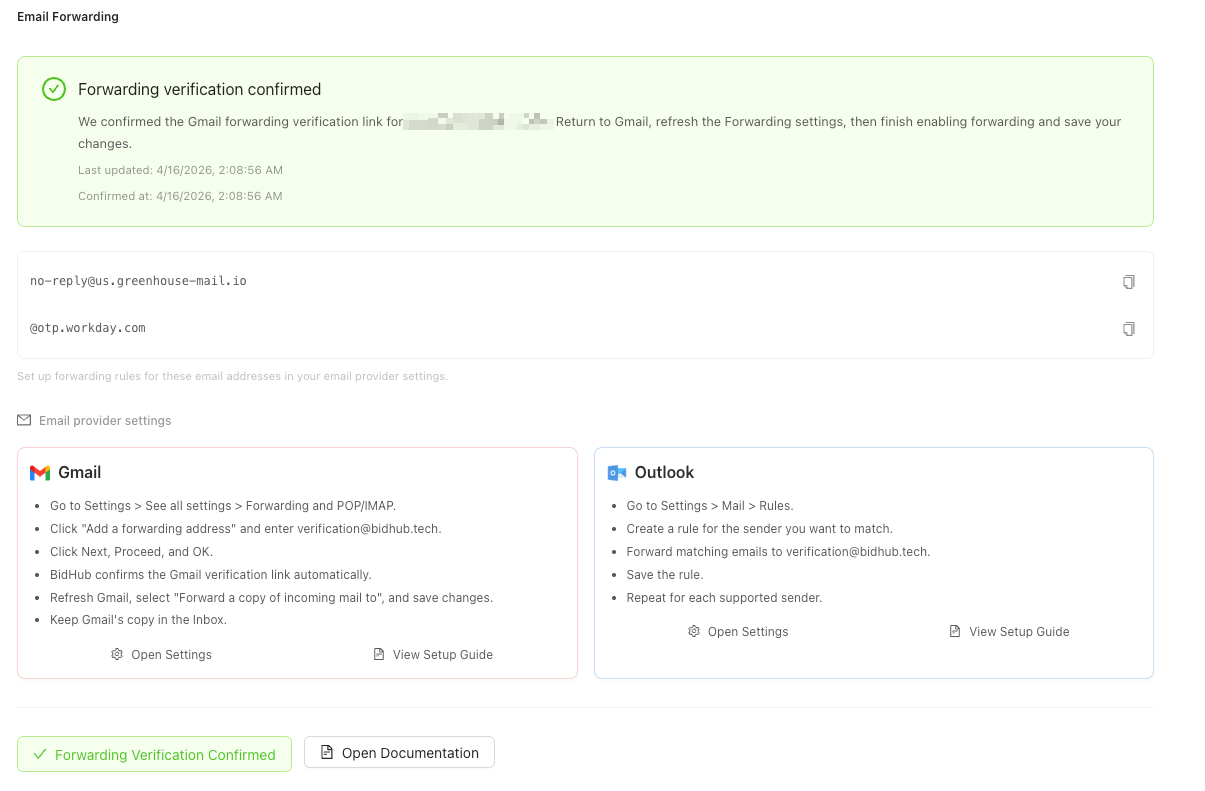
BidHub confirms the Gmail verification email automatically, and the Email Forwarding status in BidHub updates on its own when confirmation succeeds.
The steps above describe Gmail's full forwarding flow. For BidHub, we still recommend using sender-specific filters below unless you intentionally want Gmail to forward all incoming mail.
2. Create sender-specific filters
After the forwarding address is added, create filters so only BidHub-supported verification emails are forwarded.
- In Gmail, click the search options icon in the search bar.
- In the From field, enter
no-reply@us.greenhouse-mail.io. - Click Create filter.
- Turn on Forward it to and choose
verification@bidhub.tech. - Save the filter.
- Repeat the same process for
@otp.workday.com.
If your Gmail account prefers separate filters for each sender, keep them separate. That is the clearest setup for BidHub.
Create sender-specific Gmail filters so only BidHub-supported verification emails are forwarded.
Outlook Web Setup
For Outlook.com and Outlook on the web, use Mail > Rules so only supported verification emails are forwarded.
Do not use account-wide forwarding as the primary BidHub setup unless you intentionally want all mail forwarded.
- Open Outlook on the web.
- Select Settings.
- Go to Mail > Rules.
- Click Add new rule.
- Name the rule something like
BidHub Greenhouse verification. - Set the condition so the sender includes
no-reply@us.greenhouse-mail.io. - Set the action to Forward to and enter
verification@bidhub.tech. - Save the rule.
- Create a second rule for
@otp.workday.com.
If your Outlook version also shows Mail > Forwarding, keep in mind that page is for account-wide forwarding. For BidHub, rules are the better fit because they keep forwarding limited to the supported verification emails.
Use Outlook web rules so only the Greenhouse and Workday verification emails are forwarded to BidHub.
Finish Setup in BidHub
After your email-provider setup is in place:
- Open Profiles in BidHub.
- Open the profile that matches the inbox you configured.
- Open Email Forwarding.
- Confirm that you added
verification@bidhub.techin your email provider. - Click I've Added the Forwarding Address.
For Gmail accounts, BidHub can automatically confirm the Gmail forwarding request and show status updates in the Email Forwarding section:
- Waiting for Gmail verification email: BidHub is waiting for Gmail's forwarding confirmation email.
- Confirming forwarding automatically: BidHub received the Gmail email and is opening the confirmation link.
- Email forwarding confirmed: Gmail forwarding is ready.
- Automatic confirmation needs attention: Gmail forwarding could not be confirmed automatically and needs another try.
The automatic confirmation statuses above are Gmail-specific. Outlook web rules still need to be created and managed in Outlook.
Troubleshooting
The button says to save the profile first
Save the profile before you start monitoring. BidHub needs the saved profile and its email address to match Gmail confirmation messages to the correct profile.
Gmail forwarding is disabled by my school or work admin
Some Google Workspace organizations restrict forwarding. If you cannot add verification@bidhub.tech or Gmail blocks forwarding, check with your administrator. Google documents forwarding controls for Workspace admins in its official admin help.
Gmail confirmation is stuck or failed
Check these items:
- Make sure the profile email in BidHub matches the Gmail inbox you configured.
- Confirm that
verification@bidhub.techwas added in Gmail before you clicked I've Added the Forwarding Address. - Resend the Gmail forwarding confirmation email from Gmail settings if needed.
- Review your Gmail filters and make sure they point to
verification@bidhub.tech.
If BidHub shows Automatic confirmation needs attention, resend the Gmail confirmation email and try again from the Email Forwarding section.
Outlook asks for Microsoft two-step verification
Microsoft states that Outlook.com can prompt you to enable or re-verify two-step verification when you turn on forwarding. Complete that Microsoft security step first, then return to your Outlook rule or forwarding setup.
I want to turn forwarding off later
To stop forwarding:
- In Gmail, remove the sender-specific filters that forward to
verification@bidhub.tech, or disable forwarding in Forwarding and POP/IMAP if you turned it on account-wide. - In Outlook web, delete or disable the BidHub forwarding rules in Mail > Rules.
You can keep the Email Forwarding section in BidHub for reference, but the mail-provider rules control whether new messages are forwarded.
Official References
These vendor guides are helpful if you need the provider's own step-by-step screens: