Job Board
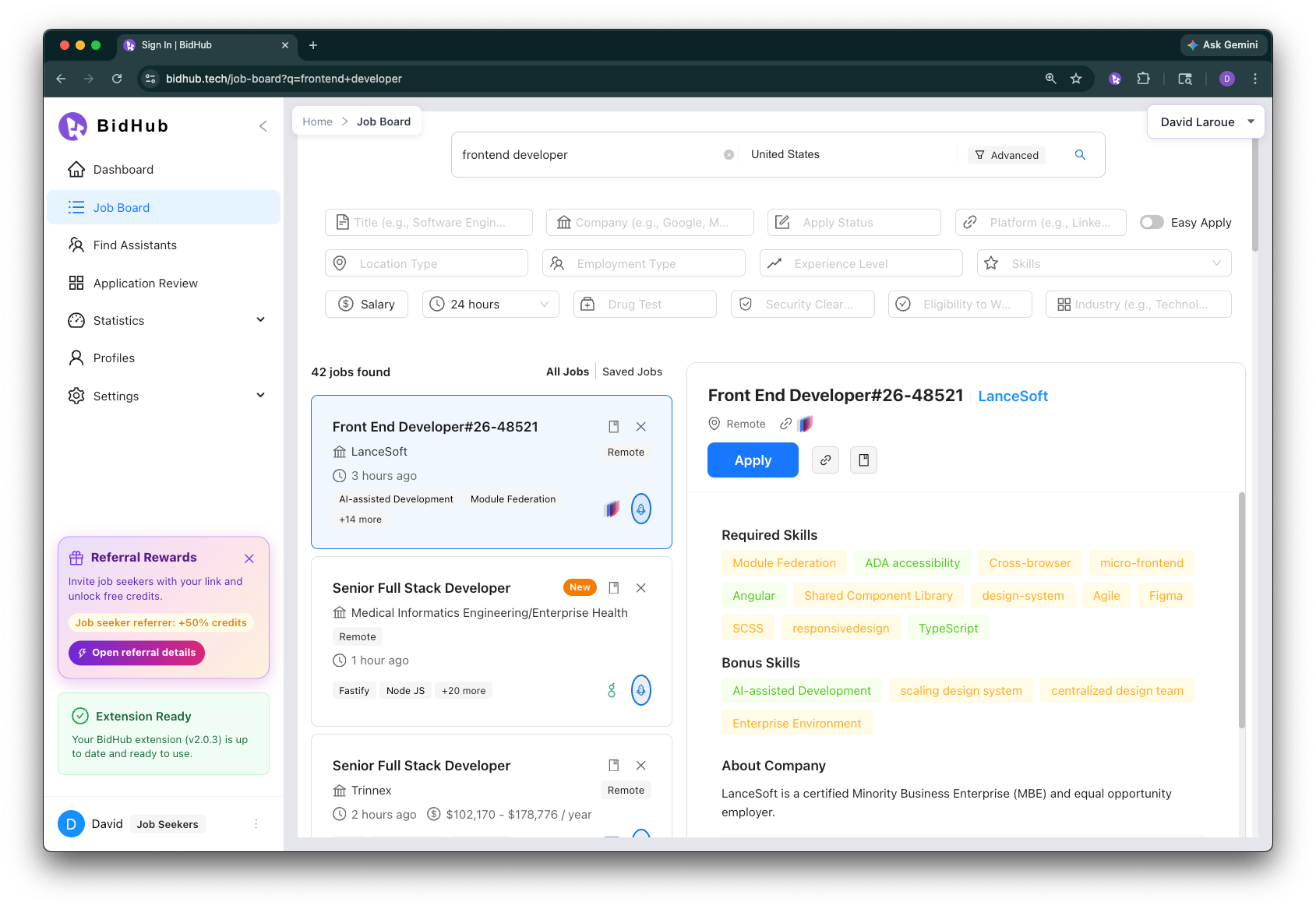
The Job Board is where users search, filter, save, hide, and apply to job listings through BidHub.
It is designed for both Job Seekers and Assistants working with shared profiles.
Users can browse the Job Board without signing in. To apply through BidHub, they must sign in and select a profile first.
Before you apply: select a profile
Before applying to any job, users must select a profile at the top of the Job Board.
The selected profile controls:
- The Apply Criteria used to determine whether a job is Qualified or Disqualified in BidHub Copilot and Application Review
- The resume and profile data used by BidHub Copilot
- The Data Access cost incurred for accessing new jobs ($0.90 per 1,000 unique jobs)
What you can do in the Job Board
From the Job Board, users can:
- Search for jobs using keywords and country filters
- Narrow results with Advanced Search
- Open a job and use BidHub Copilot to check whether it is Qualified or Disqualified
- Save jobs for later
- Hide jobs that are no longer relevant
- Apply through a tracked BidHub session
The Job Board may also show a badge with the number of new jobs the user has not viewed yet.
Search and filter options
Main Search
The main search area allows users to search broadly using:
- Keyword Search
- Country
Keyword Search
Keyword search is broad and flexible. It looks for relevant matches across job listings and ranks them by best match.
For example, if a user enters Senior Software Engineer, the results may still include Software Engineer positions. Broader but related titles may appear lower in the results.
Advanced Search
The Advanced Search panel gives users more control.
Available filters include:
- Title
- Company
- Apply Status
- Platform
- Easy Apply
- Location Type
- Employment Type
- Experience Level
- Skills
- Salary
- Posted Time
- Drug Test
- Security Clearance
- Eligibility to Work
- Industry
Advanced Search Title: exact match
The Title field inside Advanced Search is more precise than the main keyword search.
For example, if a user enters Senior Software Engineer in Advanced Search Title, broader titles such as Software Engineer are excluded.
Use this when tighter title control is more important than broad discovery.
How to search and apply
- Open Job Board
- Sign in and select a profile if you plan to apply
- Enter keywords and choose a country if needed
- Open Advanced Search for more filters
- Open a job page and use BidHub Copilot to check whether the job is Qualified or Disqualified
- If you want to proceed, click Apply
- Move to the new application tab that BidHub opens
- Use BidHub Copilot to complete the application
- Save or hide jobs as needed
You can also review the qualification status later in Application Review.
Depending on the workflow, credits may be used for open-ended AI answer generation (e.g. $1.00 per 1,000 answers) and for accessing new jobs through the Job Board ($0.90 per 1,000 unique jobs). Standard profile-field Autofill does not consume AI-answer credits.
Job actions
Apply
Starts a tracked application session for that job.
Save
Keeps a job for later review.
Unsave
Removes a job from the saved list.
Hide
Removes a job from the working list when it is no longer relevant.
Notes for Assistants
Assistants should always confirm that the correct profile is selected before applying.
The selected profile affects:
- Job qualification checks shown in BidHub Copilot and Application Review
- Document behavior
- BidHub Copilot behavior
- Credit Usage tracking