Quick Start
Use this guide to get fully set up with BidHub as quickly as possible.
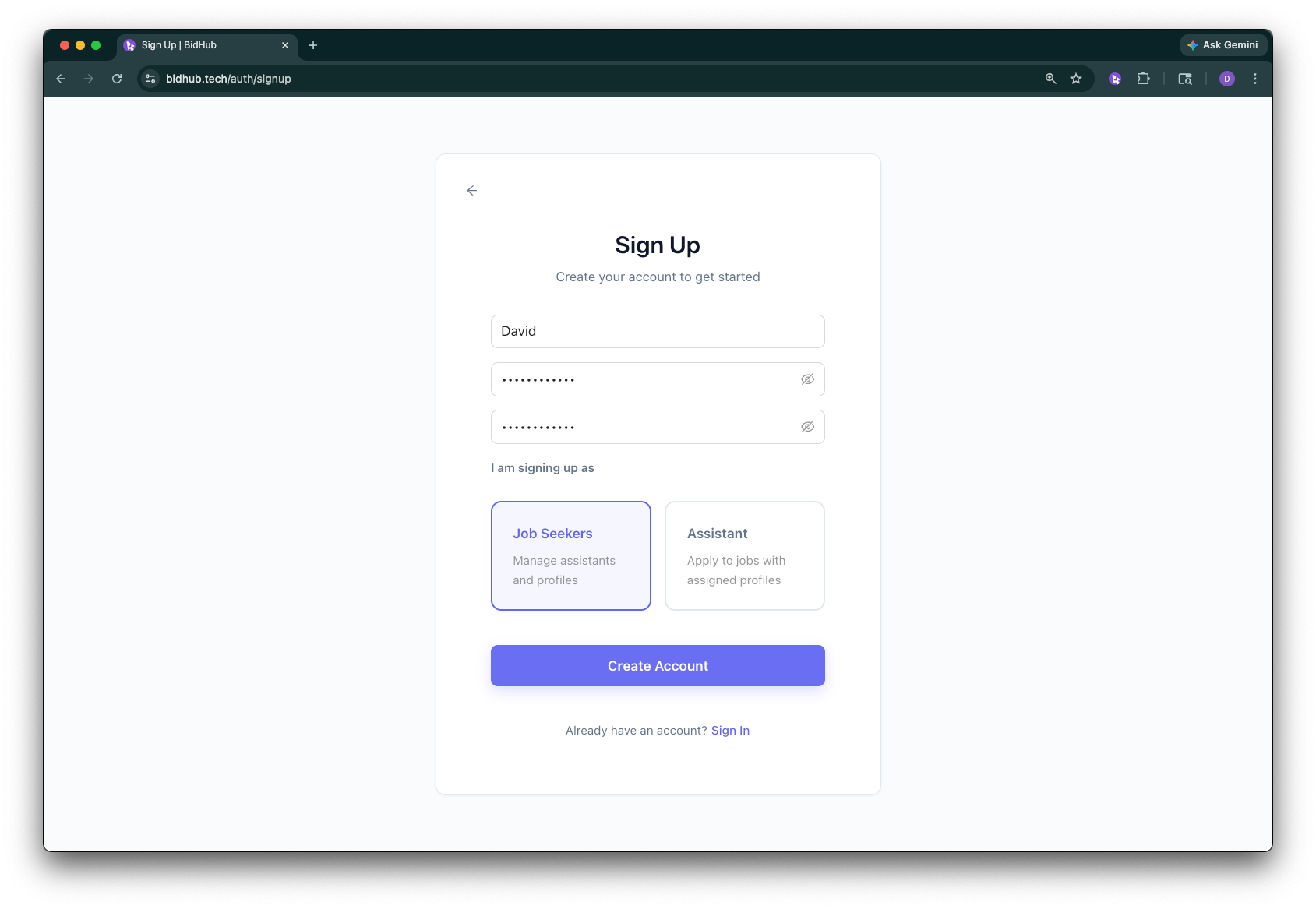
Step 1: Create your account
Go to bidhub.tech and click Get Started.
- Create a username. It must begin with a letter and may include letters, numbers,
.,-, or_ - Create and confirm a password with at least 6 characters
- Select your role: Job Seeker or Assistant
- Click Sign up
If you already have an account, select Sign in instead.
BidHub authenticates with your username rather than your email address.
After sign-up, BidHub opens the Recovery Questions page. You can complete it immediately or skip it for later, but setting it up is recommended because it is required if you ever need to reset or change your password.
You can manage Recovery Q&A later in Settings -> Account.
If you plan to use BidHub Copilot, use Google Chrome.
Step 2: Set up a profile
If you are a Job Seeker
- Open Profiles
- Click Create Profile and upload your resume
- BidHub analyzes your resume and auto-fills sections like Personal Information and Work & Education
- Review the auto-filled information, update anything needed, and click Create Profile
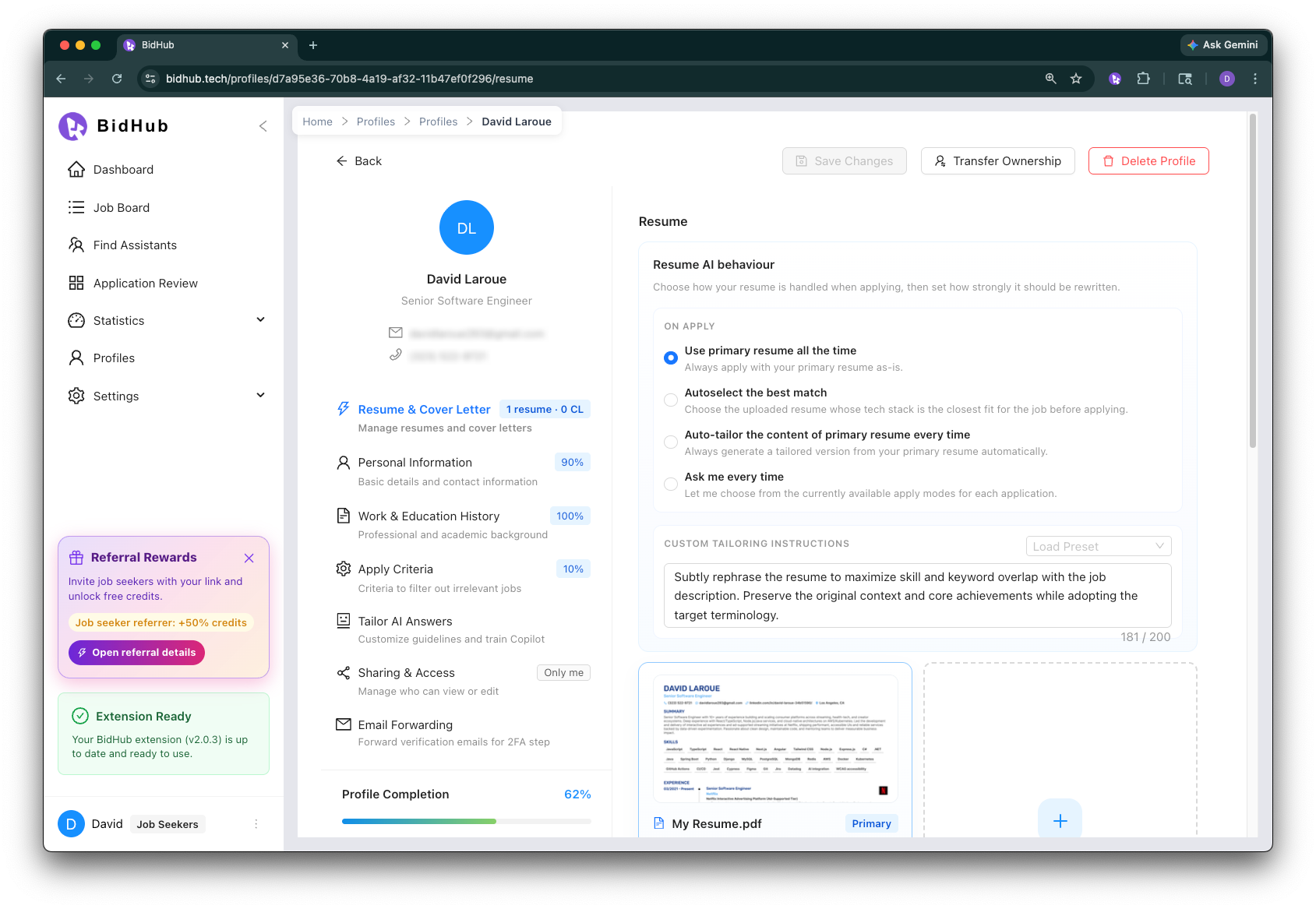
You have now created your first profile. You can start applying to jobs right away, or share your profile with reliable Assistants who can apply on your behalf.
If you are an Assistant
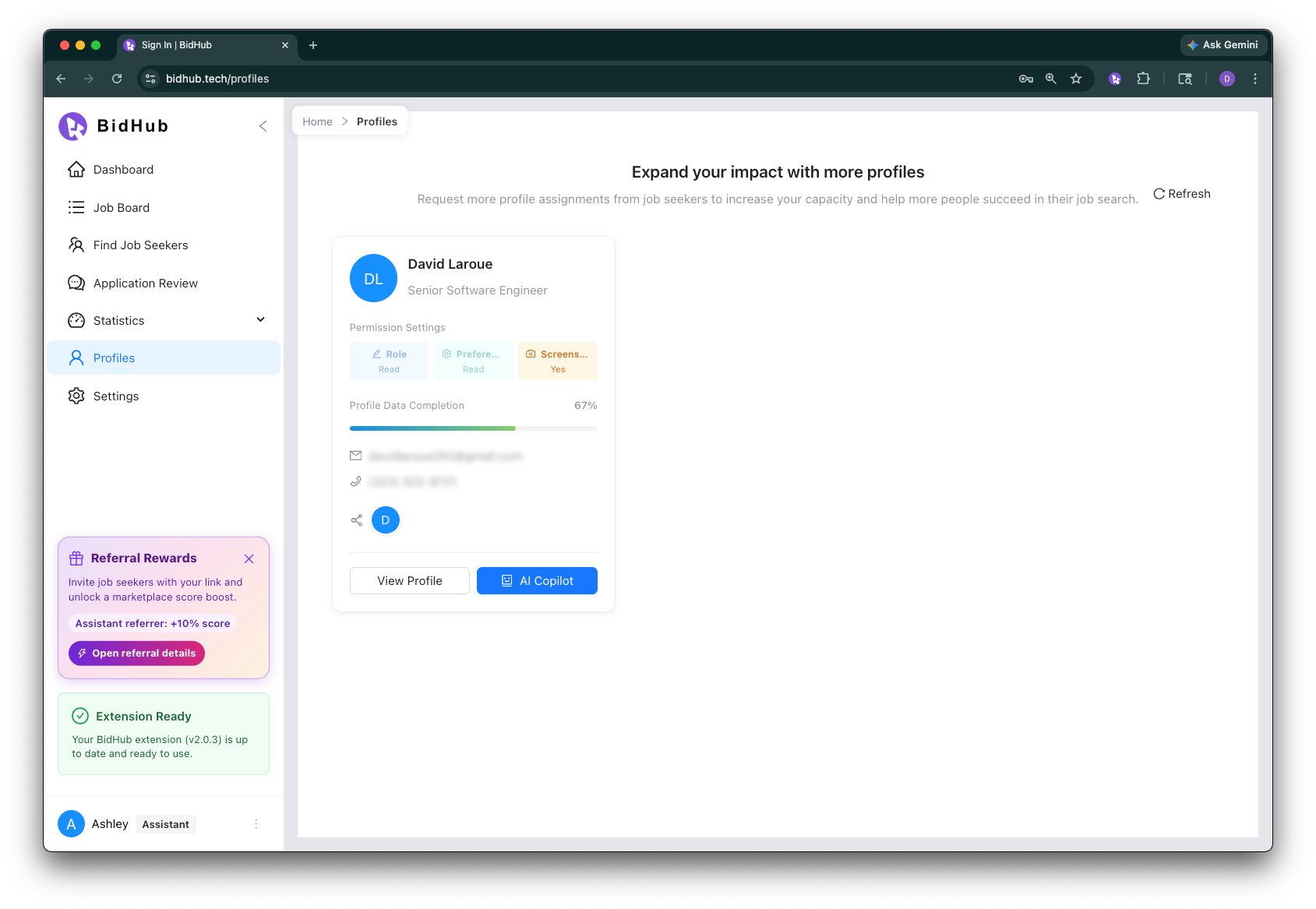
- Open Profiles
- If a Job Seeker shares a profile with you, it appears in the Profiles section of the menu
- You can start applying to jobs using shared Job Seeker profiles
- You can get paid based on your performance and the quality of your applications
- Assistants cannot create profiles for themselves
Step 3: Install BidHub Copilot
Install BidHub Copilot from the Chrome Web Store and sign in.
After Step 3, you can start applying to jobs.
If you want to use advanced paid features such as open-ended AI Answering or resume and cover letter tailoring, you will need credits.
Step 4: Add Credits
Our platform utilizes a Pay-As-You-Go credit system for maximum transparency and flexibility.
- Go to Settings -> Credits to top up your balance
- Credits are used for open-ended AI answer generation, accessing the Job Board, and Document Preprocessing
Step 5: Connect with the right people
This is where you can find the right person to work with and collaborate with.
- Job Seekers can use Find Assistants to review assistants' experience, total applications, application quality, and other performance signals before choosing who to work with.
- Assistants can use Find Job Seekers and connect by email or phone to start the conversation directly.
- If you want to avoid unexpected partner requests, turn off Contact Visibility in Settings -> Account. Once the visibility toggle is off, other users cannot discover you through these partner search tools.
Once a Job Seeker shares a profile, the Assistant can begin working with it.
Step 6: Search and apply
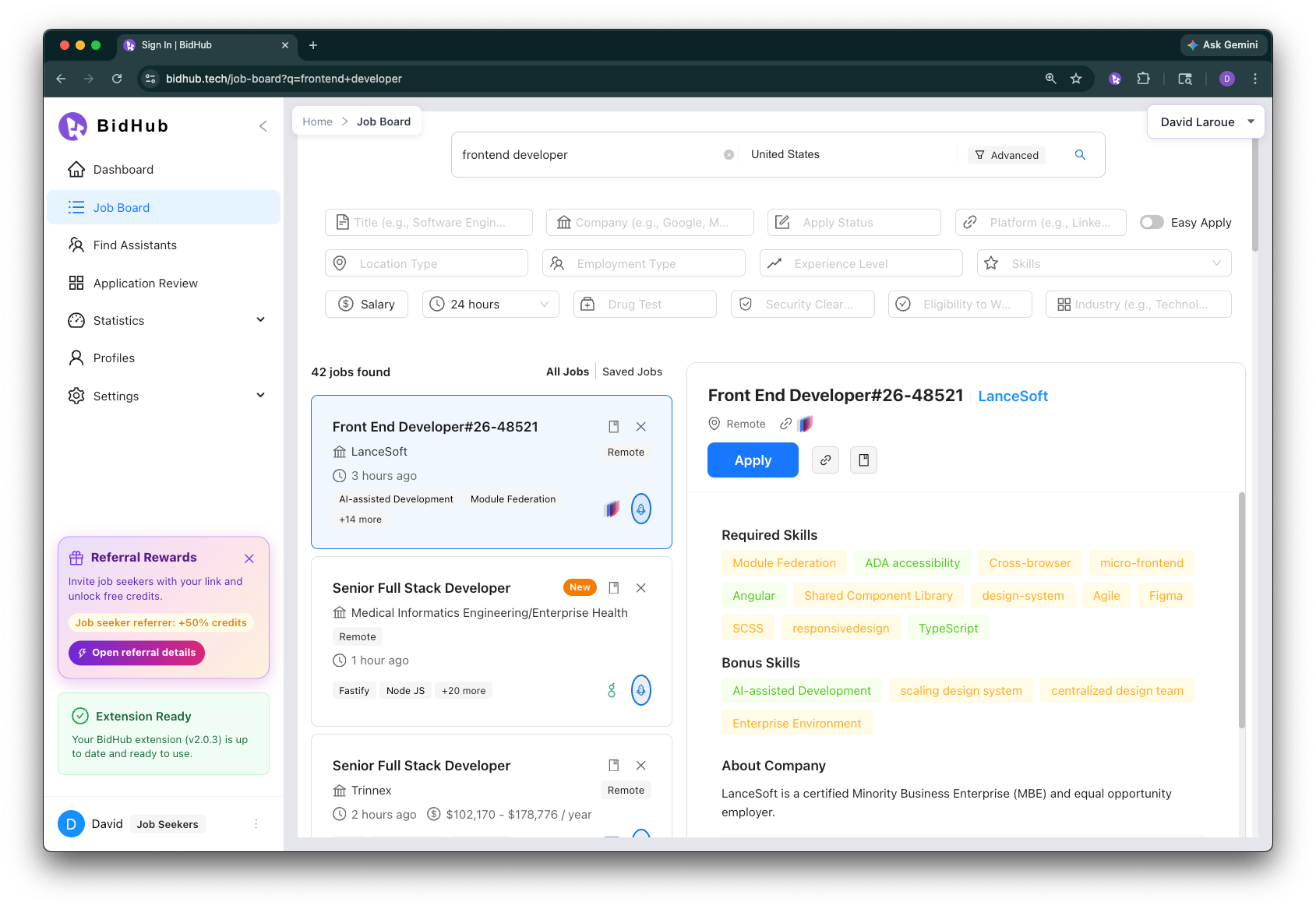
- Open Job Board
- Select a profile
- Search and filter jobs that match your requirements
- Choose a job and click Apply to start the application. You can also apply from supported job pages on sites such as LinkedIn or Indeed
- On supported job pages, BidHub Copilot detects the job and description, then shows whether the role is Qualified or Disqualified and gives you a match rate based on your profile criteria
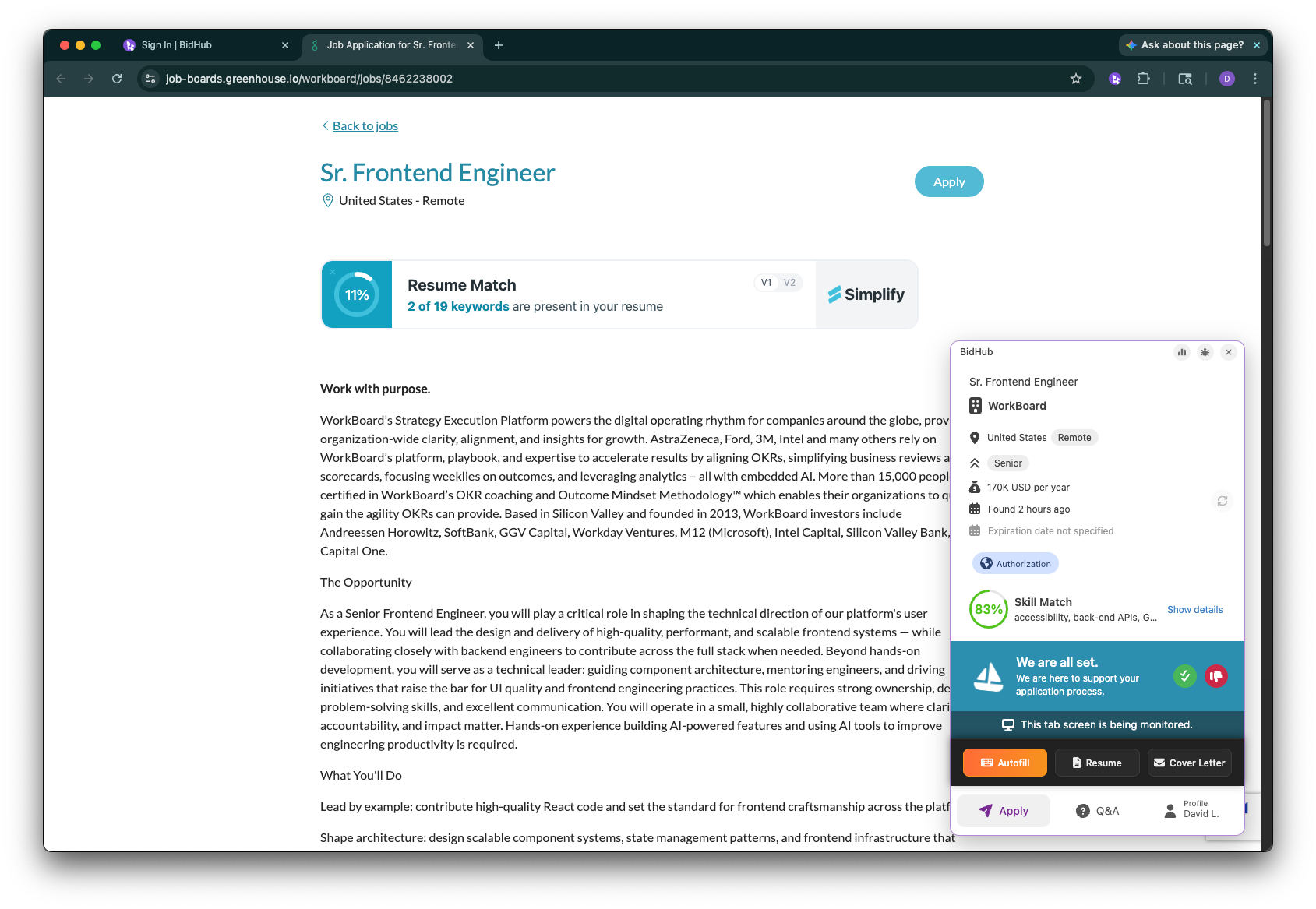
- Complete the application manually, or use Autofill for standard profile fields, AI-assisted answers for open-ended questions, and resume or cover letter tailoring to move faster and improve ATS results.
- Review the application later in Application Review
Using Autofill for standard profile fields does not consume AI-answer credits. Credits are used when BidHub generates open-ended written answers. If you start from Job Board, accessing new jobs also uses credits.
Step 7: Review and improve
After you start applying:
- Review sessions in Application Review
- Track activity in Statistics
- Update your profile when your targets change
- Manage security and credits in Settings